

Online Privacy Tips Everyone Should Know can reduce the amount of personal information exposed through weak accounts, careless sharing, tracking, scams, and insecure devices. Good privacy habits also make identity theft, account takeover, profiling, and unwanted data collection harder.
This guide explains practical ways to protect accounts, devices, browsing activity, location information, and personal details. It also clarifies public Wi-Fi, password managers, passkeys, browser settings, backups, social media, and what to do quickly after a suspected breach or privacy incident.
What Does Online Privacy Actually Mean?
Online privacy is about controlling how personal information is collected, used, stored, and shared when you use digital services.
That information can include:
- your name and contact details;
- browsing activity;
- search history;
- location;
- purchases;
- photos;
- contacts;
- financial information;
- device identifiers;
- account activity.
Privacy and cybersecurity overlap, but they are not identical.
Privacy concerns who can access and use information about you.
Security concerns protecting that information and your accounts from unauthorized access.
Good online habits should address both.
Read More: Best Digital Tools for Work, Creativity, and Productivity
Online Privacy Tips at a Glance
| Privacy Habit | What It Helps Protect Against |
|---|---|
| Use unique passwords | Credential reuse attacks |
| Enable MFA | Account takeover |
| Use passkeys when available | Password theft and phishing |
| Review app permissions | Unnecessary data collection |
| Install software updates | Known security vulnerabilities |
| Check privacy settings | Excessive sharing and tracking |
| Limit location access | Unnecessary location exposure |
| Verify unexpected messages | Phishing and scams |
| Back up important files | Data loss and ransomware |
| Secure your home Wi-Fi | Unauthorized network access |
| Review connected apps | Old third-party access |
| Share less publicly | Profiling, impersonation, scams |
1. Use a Different Password for Every Important Account
Password reuse creates unnecessary risk.
If attackers obtain one reused password through a data breach, they may try the same credentials on:
- email;
- banking;
- shopping accounts;
- social networks;
- cloud storage.
This technique is commonly called credential stuffing.
NIST recommends using a password manager when passwords are required because password managers can generate and securely store long, unique credentials for different accounts.
Prioritize Your Most Important Accounts
Start with accounts that could allow an attacker to reset other passwords or access sensitive data:
- primary email;
- financial accounts;
- cloud storage;
- social media;
- mobile-provider account.
Your email account deserves particular attention because password-reset links for other services often arrive there.
2. Use a Password Manager
Remembering dozens of strong, unique passwords is unrealistic for many people.
A reputable password manager can:
- create random passwords;
- store them securely;
- autofill login details;
- reduce password reuse.
NIST specifically recommends password managers and notes that they improve both security and convenience when managing unique credentials.
Protect the password manager itself carefully.
Use:
- a strong master password;
- MFA if supported;
- secure account-recovery settings.
3. Make Passwords Long
When you must create a password manually, length matters.
Current NIST consumer guidance recommends at least 15 characters when creating a password yourself and suggests using memorable passphrases when appropriate.
Avoid passwords based on easily discovered information such as:
- birthdays;
- children’s names;
- favorite teams;
- addresses;
- common phrases.
Complex-looking substitutions such as replacing an “a” with “@” do not automatically make a predictable password strong.
4. Turn On Multifactor Authentication
Multifactor authentication, or MFA, adds another verification requirement beyond a password.
Depending on the service, that could include:
- an authenticator app;
- security key;
- device confirmation;
- biometric verification;
- one-time code.
NIST and the FTC both recommend enabling MFA because it can make account takeover harder even when a password has been exposed.
Protect Email With MFA First
If you only have time to secure a few accounts initially, enable MFA on your email account immediately.
Someone controlling your email may be able to reset passwords for many other accounts.
5. Use Passkeys Where Available
Passkeys are increasingly offered as an alternative to traditional passwords.
They use cryptographic credentials linked to a device or password-manager ecosystem rather than requiring users to type a reusable secret.
NIST notes that passkeys are much more resistant to traditional phishing because there is no normal password for a fake website to collect.
A passkey can often be unlocked using:
- fingerprint;
- face recognition;
- device PIN.
Passkeys do not eliminate every security risk, but they can significantly reduce risks associated with stolen and reused passwords.
6. Learn to Recognize Phishing
Privacy protection is not only about settings.
Attackers frequently persuade people to voluntarily hand over sensitive information.
A phishing message may claim:
- your account is locked;
- a payment failed;
- a parcel cannot be delivered;
- you owe money;
- unusual activity was detected;
- immediate verification is required.
The FTC advises against clicking links in unexpected emails or texts asking for sensitive information. Instead, contact the organization through a website or telephone number you already know is legitimate.
Urgency Is a Warning Sign
Be especially cautious when a message tries to prevent you from thinking.
Phrases such as:
Act immediately
Your account will be deleted
Pay within 30 minutes
should make you verify the request independently.
7. Do Not Trust a Website Simply Because It Uses HTTPS
HTTPS is important because it encrypts information traveling between your browser and the website.
It does not prove that the website itself is trustworthy.
The FTC warns that scammers can also create encrypted websites. Your connection to a fraudulent site may be encrypted even though the person receiving your information is a scammer.
Check:
- the domain name;
- spelling;
- how you reached the page;
- whether the request makes sense.
Avoid logging in through links in suspicious messages.
8. Keep Phones, Computers, and Browsers Updated
Software updates frequently contain security fixes.
An outdated:
- operating system;
- browser;
- mobile app;
- router;
- security application
may contain publicly known vulnerabilities.
The FTC recommends keeping operating systems, browsers, security software, and phones updated and enabling automatic updates where appropriate.
Updates are therefore a privacy measure as well as a performance or feature update.
9. Review App Permissions
Many mobile apps request access to device capabilities.
These may include:
- location;
- contacts;
- camera;
- microphone;
- photos;
- files.
Ask whether that access is necessary for the app’s core purpose.
The FTC recommends reviewing permissions and disabling unnecessary access, particularly when an application requests information it does not need to function.
For example, a calculator usually should not need continuous access to your location.
10. Limit Location Sharing
Location information can reveal more than where you are at a single moment.
Over time it may reveal patterns such as:
- where you live;
- where you work;
- when you travel;
- places you regularly visit.
Review location permissions on your phone.
Common options include:
- never;
- ask next time;
- only while using the app;
- always.
Choose the lowest level of access that allows the feature you actually need.
The FTC advises users to consider whether each app genuinely needs location access and to disable unnecessary location sharing.
11. Check Photo Location Data
Photos can contain metadata.
Depending on device settings and how the image is shared, that metadata may include location information.
If you do not need geotagging, review camera location settings.
You should be particularly careful when publishing photos taken at:
- home;
- children’s schools;
- workplaces;
- private locations.
Not every platform preserves all metadata, but reducing unnecessary collection at the source provides greater control.
12. Review Social Media Privacy Settings
Social networks encourage sharing.
That does not mean everything should be public.
Check who can see:
- posts;
- photos;
- stories;
- friends lists;
- contact information;
- location;
- activity status.
Privacy settings can reduce exposure, although they cannot guarantee that shared content remains private.
Someone who can view a post may still:
- screenshot it;
- download it;
- forward it;
- record it.
The FTC warns that material shared online can remain available even after the original post is removed or expires.
13. Share Less Personal Information Publicly
Public information can sometimes help scammers personalize attacks.
Think carefully before publicly displaying:
- full birth dates;
- home addresses;
- phone numbers;
- family details;
- travel schedules;
- identification documents;
- answers to common security questions.
A criminal does not necessarily need to compromise a database if enough information is already publicly available.
Avoid Posting Travel Plans Too Early
Announcing that your home will be empty for two weeks provides information you may not intend to share.
Consider posting trip photos after returning rather than broadcasting your absence in real time.
14. Review Your Browser Privacy Settings
Websites and advertising systems can collect information about browsing activity.
The FTC recommends reviewing browser settings and other account controls to understand and limit tracking where possible.
Depending on the browser, settings may allow you to control:
- third-party cookies;
- site permissions;
- pop-ups;
- location;
- camera access;
- microphone access;
- tracking protections.
Stronger settings can occasionally break legitimate website functionality, so adjust them according to your privacy preferences and needs.
15. Understand What Private Browsing Does
Private or incognito browsing can be useful, but its name is sometimes misunderstood.
It mainly prevents certain browsing data from being retained locally after the session.
It generally does not make you invisible to:
- websites you visit;
- your employer or school network;
- an internet provider;
- services you sign into.
Use private browsing when you want less local history stored on a shared device.
Do not treat it as complete online anonymity.
16. Be Careful With Browser Extensions
Browser extensions can sometimes access substantial amounts of browsing data.
Before installing one, review:
- its developer;
- permissions;
- user history;
- whether you genuinely need it.
Remove extensions you no longer use.
An old extension with broad access can become a privacy risk even if you have forgotten it exists.
17. Review Connected Apps and Account Access
Signing into another application with a Google, Microsoft, Apple, Facebook, or similar account can give that third party access to account information.
Periodically review connected services.
Remove access for:
- old apps;
- abandoned websites;
- services you do not recognize;
- tools you no longer use.
Removing the original application from your phone does not necessarily remove every server-side account connection.
18. Understand Public Wi-Fi Risks Without Panicking
Public Wi-Fi has a reputation for being inherently dangerous.
The reality is more nuanced.
The FTC notes that widespread HTTPS encryption means using public Wi-Fi is generally safer than it once was because most web traffic is encrypted.
You should still verify that you are joining the correct network.
Attackers can create similarly named hotspots.
When conducting especially sensitive work, a trusted mobile connection can be a sensible alternative.
Avoid Blindly Trusting Free VPNs
A VPN shifts some network visibility to the VPN provider.
That means you must trust the provider itself.
CISA has cautioned in current mobile-security guidance that personal VPNs can simply move residual trust from the internet provider to the VPN company and that some free or commercial VPNs have questionable privacy practices.
A VPN is therefore not an automatic privacy solution.
19. Secure Your Home Wi-Fi
Your router connects many devices in your home.
Protect it by:
- changing default administrator credentials;
- using modern Wi-Fi encryption;
- installing firmware updates;
- choosing a strong Wi-Fi password;
- disabling unnecessary remote management.
The FTC specifically recommends securing home Wi-Fi, changing default passwords, using encryption, and keeping networking equipment updated.
20. Lock Your Devices
Online privacy depends partly on physical security.
Someone who picks up an unlocked phone may gain access to:
- email;
- photos;
- messages;
- banking apps;
- authentication codes.
Use a strong:
- PIN;
- passcode;
- biometric lock where appropriate.
Configure the screen to lock automatically after a reasonable period of inactivity.
21. Be Selective About What You Store in the Cloud
Cloud storage can be convenient and secure when properly managed.
Still, ask whether extremely sensitive information needs to be stored indefinitely.
Periodically clean up:
- old identification scans;
- outdated financial documents;
- obsolete backups;
- documents containing unnecessary personal data.
The safest unnecessary data is often data you no longer retain.
22. Back Up Important Information
Privacy and security problems can become data-loss problems.
Ransomware, malware, theft, hardware failure, or accidental deletion can make files unavailable.
The FTC recommends maintaining backups of important information so it can be recovered if something goes wrong.
Important files might include:
- photographs;
- business documents;
- financial records;
- academic work;
- account recovery information.
Where appropriate, maintain a backup that is not continuously connected to the same device.
23. Avoid Oversharing With AI Tools
AI assistants can be useful, but users should think carefully before entering confidential information into any external service.
Avoid casually pasting:
- passwords;
- private customer information;
- unreleased business data;
- identification numbers;
- private legal documents;
- financial credentials.
For workplace use, follow your organization’s approved AI and data-handling policies.
Before sharing sensitive material with any cloud service, understand how that service stores and uses submitted information.
24. Delete Accounts You No Longer Need
Unused accounts still represent data exposure.
An abandoned service may retain:
- your email address;
- old passwords;
- personal profile information;
- purchase history;
- payment details.
If an account serves no purpose, consider deleting it rather than simply removing the app.
Keep in mind that account deletion and application deletion are different actions.
25. Opt Out of Unnecessary Data Sharing
Websites, apps, advertising platforms, and data brokers may collect information for advertising, analytics, or other purposes.
The FTC provides guidance on managing targeted advertising, browser privacy settings, and requests to remove information from certain people-search services.
Available rights vary by:
- country;
- state;
- type of organization.
Review privacy controls rather than automatically accepting every default.
26. Check People-Search and Data-Broker Sites
Some services collect publicly available and commercial information and make profiles searchable.
Depending on the service and jurisdiction, you may be able to request removal or opt out.
The FTC specifically provides consumer guidance covering people-search sites and ways to request that personal information no longer be sold or displayed.
Removal may not erase the original public records from which information was sourced, but it can reduce casual discoverability.
27. Protect Account Recovery Methods
Strong security can fail if account recovery is weak.
Review:
- recovery email;
- recovery phone number;
- backup codes;
- trusted devices.
Remove phone numbers and email addresses you no longer control.
Store backup recovery codes securely rather than leaving them in an easily accessible screenshot or unprotected document.
28. Be Careful With Security Questions
Traditional security questions often rely on information that may be publicly available.
Examples include:
- birthplace;
- school;
- first car;
- mother’s maiden name.
The FTC advises avoiding easily researched security answers where possible and treating answers like passwords when the questions cannot be avoided.
Use unique responses that are not easily inferred from public information.
29. Review Privacy Settings on Smart Devices
Privacy does not end at your phone and laptop.
Internet-connected devices can include:
- televisions;
- speakers;
- cameras;
- watches;
- cars;
- home appliances.
The FTC recommends reviewing privacy settings on connected TVs and streaming devices as well as phones, browsers, and apps.
Turn off data collection or features you do not need where settings allow it.
30. Remove Personal Data Before Selling a Device
Before giving away, recycling, or selling a:
- phone;
- computer;
- tablet;
- smart device;
sign out of accounts and follow the manufacturer’s secure erase or factory-reset process.
Simply deleting visible files may not always be sufficient.
Also remove the device from relevant cloud accounts and trusted-device lists.
What Should You Do If an Account Is Hacked?
Act quickly.
Change the Password
Use a new password that has never been used elsewhere.
Secure Your Email
If the affected service can reset passwords through email, make sure the email account itself remains secure.
Enable MFA
Turn it on if it was not already active.
Sign Out Other Sessions
Many services let users sign out all devices or remove unfamiliar sessions.
Check Recovery Details
Attackers sometimes change:
- email addresses;
- phone numbers;
- recovery options.
Review Recent Activity
Look for:
- purchases;
- messages;
- password resets;
- account changes.
Warn Contacts Where Appropriate
If an attacker sent messages from your account, tell contacts not to trust unexpected links or requests.
The FTC provides recovery guidance for compromised online accounts and recommends acting promptly when suspicious activity is discovered.
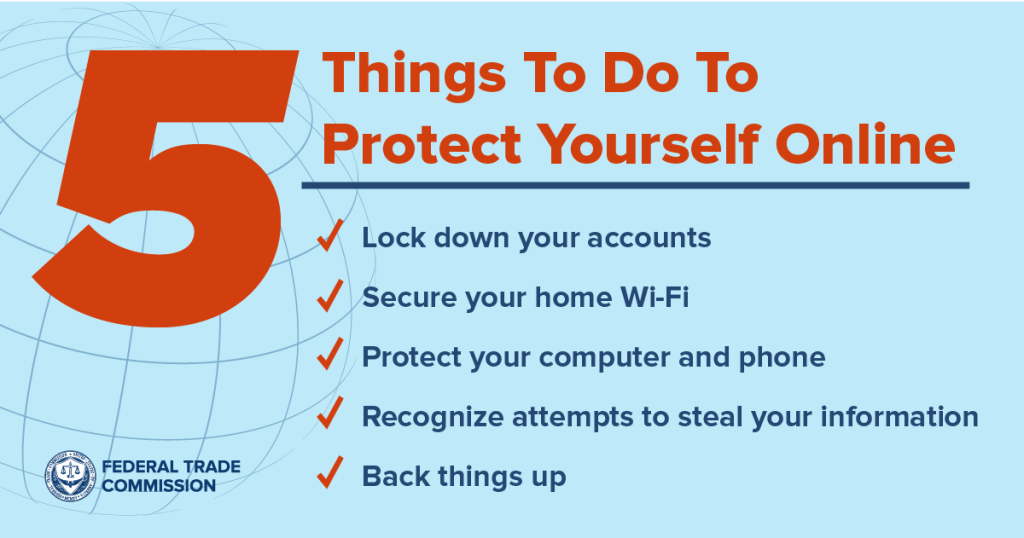
A Simple Online Privacy Checklist
Every few months, review the following:
- Are important passwords unique?
- Is MFA enabled?
- Can any password logins be replaced with passkeys?
- Are recovery details current?
- Are apps requesting unnecessary permissions?
- Is unnecessary location sharing disabled?
- Are operating systems and apps updated?
- Are unused browser extensions removed?
- Are old connected apps still authorized?
- Are social profiles exposing too much information?
- Are important files backed up?
- Are unused accounts still active?
Privacy improves through routine maintenance rather than one-time configuration.
Common Online Privacy Mistakes
Reusing Passwords
One breach can expose multiple accounts.
Assuming Incognito Means Anonymous
It mainly limits local browsing records.
Granting Every App Permission
Access should match the app’s actual function.
Posting Personal Information Publicly
Scammers can combine small pieces of information from several sources.
Clicking Urgent Messages
Unexpected login links and payment requests should be independently verified.
Ignoring Updates
Known software vulnerabilities can remain exploitable until they are patched.
Assuming a VPN Solves Everything
A VPN changes who can observe parts of your network traffic; it does not prevent phishing, malware, tracking while logged into accounts, or careless sharing.
Frequently Asked Questions
What is the most important online privacy tip?
There is no single protection that covers every risk. A strong starting combination is unique credentials, MFA or passkeys, updated devices, careful sharing, and skepticism toward unexpected requests for information.
Are password managers safe?
No technology is risk-free, but NIST recommends password managers because they make it practical to use long, unique passwords for separate accounts. The manager itself should be protected with strong authentication.
Are passkeys safer than passwords?
Passkeys are resistant to many common password attacks, particularly traditional phishing, because users do not type a reusable password into websites. NIST recommends them as a strong modern authentication option.
Is public Wi-Fi dangerous?
Modern encrypted websites make public Wi-Fi safer than it once was, according to the FTC, but users should still verify the network and remain alert for fraudulent websites or fake hotspots.
Does incognito mode protect my privacy?
It provides limited local privacy by reducing stored browsing history on the device after the session. It does not make browsing completely anonymous to websites, networks, employers, or online accounts.
Should I turn off location services completely?
Not necessarily. Navigation, weather, emergency, and other applications may need location access. The better approach is to grant access only when it provides a useful function and select the least permissive option that works.
Does using a VPN make me anonymous online?
No. A VPN can protect or obscure some network traffic, but websites may still identify you through logins, cookies, browser information, or information you provide. You also need to trust the VPN provider.
How often should I review my privacy settings?
Review them periodically and whenever you install new apps, create important accounts, change devices, or a service updates its privacy options. App and account permissions can accumulate over time.
Conclusion
Online Privacy Tips Everyone Should Know are most effective when they become routine habits. Unique passwords, MFA, passkeys, careful permissions, regular updates, restrained sharing, secure recovery settings, backups, and phishing awareness protect different parts of your digital life.

1 Comment
Pingback: How Digital Platforms Are Changing Entertainment